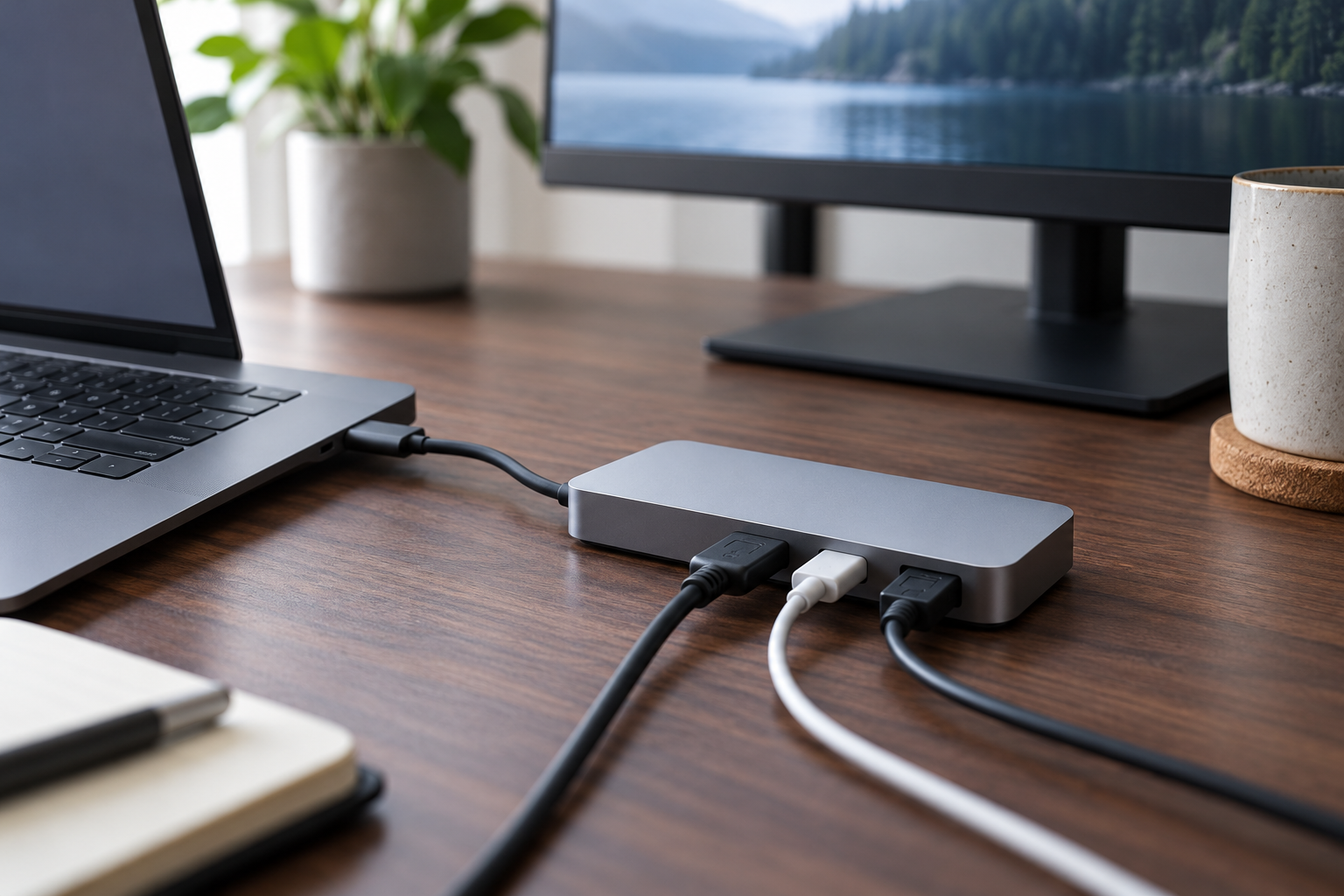
Choose a USB-C dock by the computer, displays and power path it must serve. A long port list is not a compatibility result.
Your decision, at a glance.
| Decision | What to look at | Next check |
|---|---|---|
| Computer | Model, OS and host port | Supported video and power path |
| Displays | Resolution, refresh and extended/mirror mode | Exact simultaneous-output table |
| Peripherals | Port type and power needs | Usable location and bandwidth |
Write a connection requirement sheet
Record the laptop model and operating system, the exact host port, both ends of each display cable and the desired display mode. Distinguish an extended desktop from the same image mirrored on two screens. List peripherals separately from display requirements.
USB-C names a connector system; the USB-IF maintains separate capability and compliance information for cables. Read the capabilities specified for the actual host, dock and cable rather than inferring them from the plug shape.
Separate native video from software-assisted output
Some dock display paths depend on host video capabilities; others require a driver or specific software. A managed work computer may not permit that installation. Check this before choosing a multi-display dock.
For example, j5create’s JCD543 documentation explicitly identifies driver requirements. That fact does not describe every USB-C dock or guarantee support on an unlisted operating system.
Check power and daily access
Compare the dock’s documented host charging output with the computer’s requirements and the supplied adapter. Keep peripheral power budgets separate from the headline adapter rating.
Place frequently used ports where you can reach them, and leave the host cable accessible for disconnecting. A dock hidden under a desk should not require pulling on the cable whenever a memory card or headset is connected.
Related hardware to investigate
Catalog references, not tested rankings. Confirm the exact configuration and open checks in each product note.
- WAVLINK USB C Docking Station for Laptops, USB C to Dual HDMI Monitors for Windows, USB C Hub Adapter with Dual HDMI, Displayport, VGA, 3 USB 2.0 Ports, Blue
- JSAUX USB C Hub Adapter 6 in 1 with USB-C 3.1, PD / 100W, USB-A 3.0, 4K HDMI, 3.5mm Audio, SD/TF Card Reader Compatible for MacBook Pro/Air, iPad Pro/Air and USB Type C PC/Tablet-Grey
- Docking Station, JSAUX OmniCase 7-in-1 USB C Hub with Cable Storage, Support 1000M Ethernet, 4k HDMI, 100W USB C PD, USB 3.0, SD/TF Card Docking Station for MacBookPro/Air, iPad, Chromebook
- JSAUX Laptop USB C Docking Station, 10 in 1 USB C Hub with 4K@60hz HDMI
- UtechSmart USB C Hub, Ethernet Multiport Adapter 6 In 1 USB C to HDMI Dock
- Minthouz Laptop Docking Station,12 in 1 USB C Hub Dual Monitor HDMI
- Minthouz Laptop Docking Station 3 Monitors Quad Display USB C Hub
- Mukiya 5-in-1 USB C Hub Adjustable Aluminum Laptop Stand
- Mukiya USB C Laptop Docking Station Stand, USB C Dock Tablet Stand, 8 in 1 USB C Hub with 4K HDMI, 2 USB 3.0, PD 100W, Universal Dock Station for MacBook Pro/Air/Dell/HP/Surface/Lenovo, Plug and Play
- Red Star Tec U114C Mini USB C hub, 4 Extra USB A Ports, 2.0/3.0
Your next decision
- Code & multiple screens: Match the screen, arm and desk
Sources & scope
Product catalog snapshot: October 19, 2026. Selected primary references checked October 20, 2026. References are not current Amazon offer, price or availability verification.
- USB-IF: cables and connectors ↗
- Apple: connecting displays to a Mac ↗
- j5create: JCD543 product and driver requirements ↗
This is a research draft, not a hands-on review. How the research is used