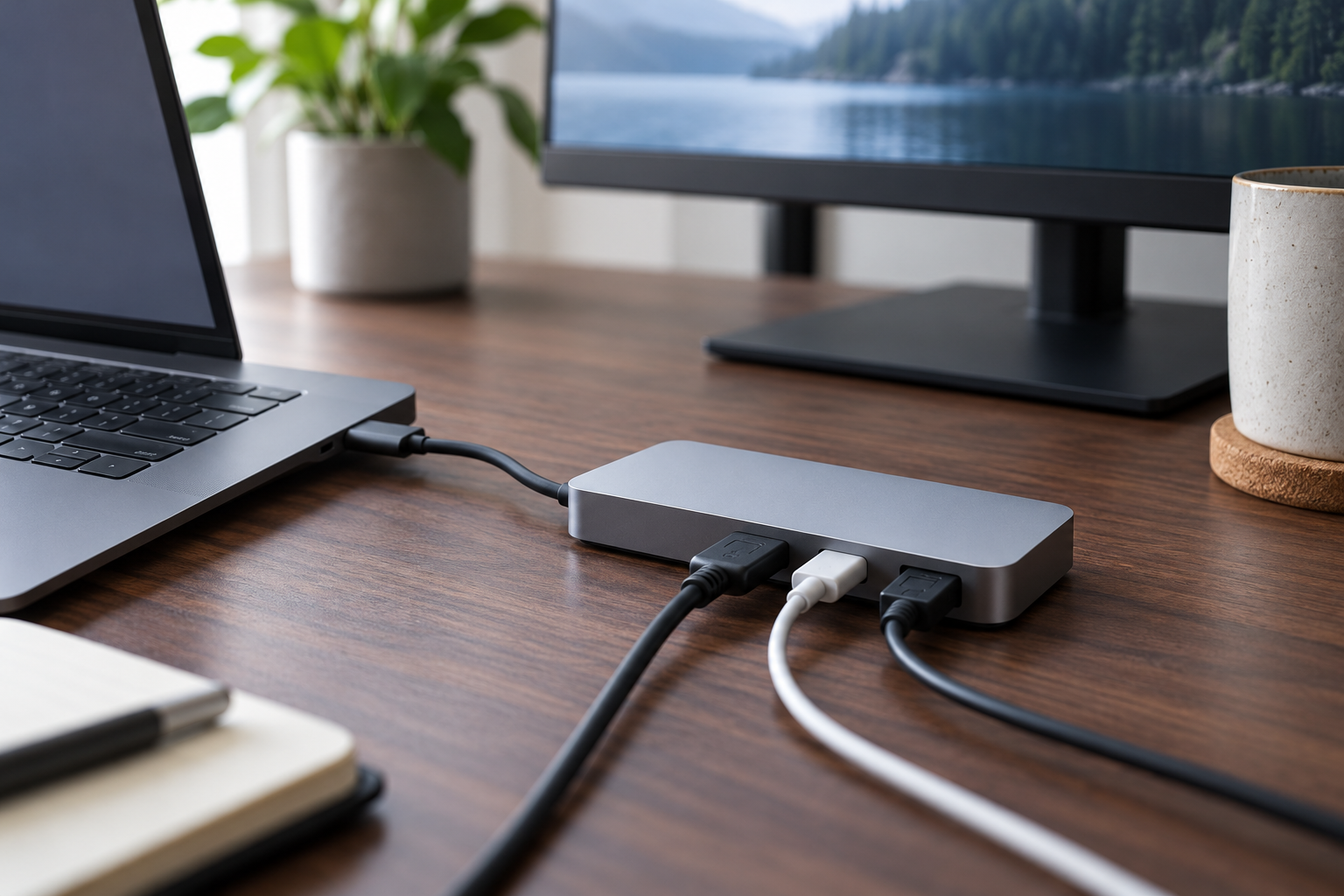
For a Mac or Surface setup, record the exact computer generation before selecting a dock. Similar external shapes can hide different display and port capabilities.
Your decision, at a glance.
| Decision | What to look at | Next check |
|---|---|---|
| Mac | Exact model and chip | Model-specific display instructions |
| Surface | Exact device generation | Supported dock and connection method |
| Whole setup | Host → dock → cable → screen | Desired simultaneous display modes |
Start with the host identity
On a Mac, use the model and chip information to find the appropriate display-support instructions. Apple explicitly makes external-display support dependent on the Mac model. For Surface, locate the documentation for the exact device and connection accessory.
Do not carry a limit or capability from one generation into another because both are described as a laptop, mini desktop or tablet.
Choose the physical working mode
A small desktop computer needs accessible ports and a place for its power connection. A detachable device needs space for the kickstand or holder as well as the keyboard. An open laptop adds another screen footprint.
Draw the actual mode used during work before choosing a shelf or vertical holder. Leave the documented ventilation and connection areas accessible.
Verify the display chain as a whole
List the host port, adapter or dock, cable and each monitor. Record the required resolution, refresh rate and whether the screens must show independent desktops. Check operating-system and driver requirements alongside the hardware.
A dock marketed for Mac or Surface is a starting point for checking a model, not a statement that all devices in that family behave identically.
Sources & scope
Product catalog snapshot: October 19, 2026. Selected primary references checked October 20, 2026. References are not current Amazon offer, price or availability verification.
This is a research draft, not a hands-on review. How the research is used